

What it means to use Office 365?
September 27, 2022
Quickstart: Create an Azure CDN profile and endpoint
October 25, 2022
This article describes two of the options for collaborating with people outside your organization:
- External access – A type of federation that allows users to find, call, and chat with people in other organizations. These people cannot be added to a team unless they are invited as guests.
- Guest access – Guest access allows you to invite people from outside your organization to join a team. Invited people get a guest account in Azure Active Directory.
For a complete overview of the external collaboration in Microsoft 365, see Overview of external collaboration options in Microsoft 365.
External access (external chat and meetings)
Set up external access if you need to find, call, chat, and set up meetings with people outside your organization who use Teams, Skype for Business (online or on-premises) or Skype.
By default, external access is enabled for all domains. You can restrict external access by allowing or blocking specific domains or by turning it off.
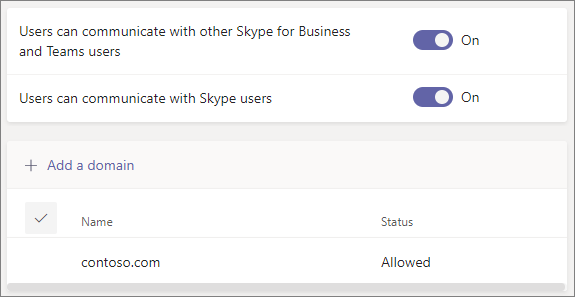
External access is available to the following tenants:
- Managed enterprise accounts
- Between Commercial only
- Between GCC only
- Between GCC High only
- Between DOD only
- Unmanaged (Personal) accounts
- Between Commercial and Personal accounts only
- Skype for Business interop
- Between and across Commercial, GCC, GCC High, and DoD
- Skype interop
- Between Commercial and Skype only
To configure external access, see Manage external access.
Note
Microsoft Teams Free (classic) licenses do not support external access.
Guest access
Use guest access to add a person from outside your organization to a team, where they can chat, call, meet, and collaborate on files. A guest can be given nearly all the same Teams capabilities as a native team member. For more information, see Guest experience in Teams.
Guests are added to your organization’s Azure Active Directory as B2B collaboration users and must sign in to Teams using their guest account. This means that they may have to sign out of their own organization to sign in to your organization.
Guest access is available to the following tenants:
- Across and between Commercial and GCC
- Between GCC High only
- Between DOD only
To configure guest access for Teams, see Collaborate with guests in a team.
Compare external and guest access
The following tables show the differences between using external access (federation) and guests. In both cases, people outside your organization are identified to your users as being external.
Things your users can do
| Users can | External access users | Guests |
|---|---|---|
| Chat with someone in another organization | Yes | Yes |
| Call someone in another organization | Yes | Yes |
| See if someone from another organization is available for call or chat | Yes | Yes1 |
| Search for people in other organizations | Yes2 | No |
| Share files | No | Yes |
| See the out-of-office message of someone in another organization | No | Yes |
| Block someone in another organization | No | Yes |
| Use @mentions | Yes3 | Yes |
Things people outside your organization can do
| People outside your organization can | External access users | Guests |
|---|---|---|
| Access Teams resources | No | Yes |
| Be added to a group chat | Yes | Yes |
| Be invited to a meeting | Yes | Yes |
| Make private calls | Yes | Yes5 |
| View the phone number for dial-in meeting participants | No4 | Yes |
| Use IP video | Yes | Yes5 |
| Use screen sharing | Yes3 | Yes5 |
| Use meet now | No | Yes5 |
| Edit sent messages | Yes3 | Yes5 |
| Delete sent messages | Yes3 | Yes5 |
| Use Giphy in conversation | Yes3 | Yes5 |
| Use memes in conversation | Yes3 | Yes5 |
| Use stickers in conversation | Yes3 | Yes5 |
| Presence is displayed | Yes | Yes |
| Use @mentions | Yes3 | Yes |
1 Provided that the user has been added as a guest and is signed in with the guest account.
2 Only by email or Session Initiation Protocol (SIP) address.
3 Supported for 1:1 chat for Teams Only to Teams Only users from two different organizations.
4 By default, external participants can’t see the phone numbers of dialed-in participants. If you want to maintain the privacy of these phone numbers, select Tones for Entry/exit announcement type (this prevents the numbers from being read out by Teams). To learn more, read Turn on or off entry and exit announcements for meetings in Microsoft Teams.
5 Allowed by default, but can be turned off by the Teams admin